How to Report a Trail Issue
Many of you have asked how you can help the Groton Trails Network. Here is a simple way to help: While you are out on the trails, use the Interactive Map capabilities to let us know when you see an issue on the trails. Alternately you can report an issue from a Property page. Typical problems are a tree that is down and blocking the path, heavy brush or grass is impinging on the trail, part of a trail is eroding, trash has been dumped near the trail, or the trail is impassable due to water.
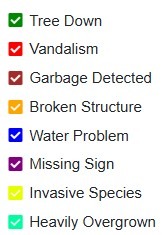
Here are suggested categories for Issue type:
Using the Interactive Map when you see a problem:
- Hit the arrow icon at the upper left of the interactive map screen. This will turn on the GPS locator (turns arrow from black to orange) and show your location on the map (a blue dot). This location will be automatically included with your report so we will know exactly where the problem is located.
- Hit the envelope icon just above the arrow. Then hit OK. This will create an email from you to us.
- Edit the Subject Line by adding the the Issue type from the list above.
- Hit return (to add a line space) and then briefly describe the problem, such as Tree blocking the trail, Trail Width too narrow, Low Branch over trail, Water causing off trail navigation, Trip Hazard such as a stump or jagged rock, etc. You can add as much of a description as you like, but a photo will save a thousand words.
- Ideally, attach a photo by hitting the paperclip icon at the top of the screen and then select “Camera”. Take a picture of the problem and then hit OK.
- Finally, hit the send icon.
Reporting an issue from a Property page
- From the Home Page or Regions summary page click the Report an Issue button and send us the issue, or
- If you have the specific Region or Property map open, click the Start Location Tracking button and then the Report a Trail Issue button.